🎛️ In-game settings
Almost every option in the config files can be changed in game. Open /storages and press the cog at the bottom of the side rail.
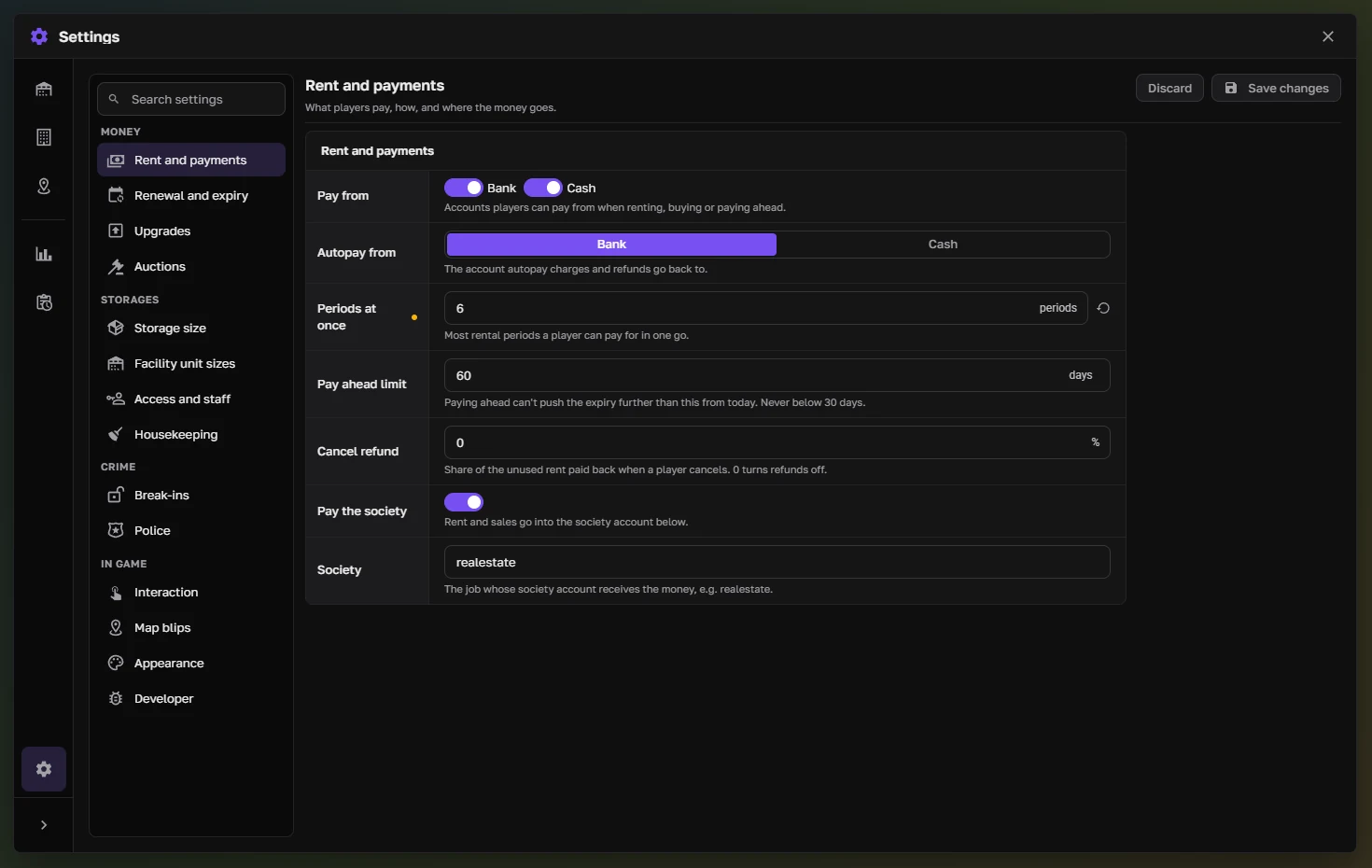
Settings → Rent and payments
Who can open it
You need both:
- a staff job (see Commands and permissions), to open
/storages; - the
nolag_storageunits.adminACE, to see the Settings tab.
How it works
- The config files hold the defaults. A value you save in game is stored in the database (
storage_settings) and wins over the file, even after a restart. - Changes take effect as soon as you press Save changes. You don't restart anything. Players get the new values straight away: blips and interaction zones are rebuilt in front of them.
- Options you changed in game show a yellow dot next to their name.
Saving
Edit as many options as you like, in any section. The header counts your unsaved changes, and sections with unsaved changes get a dot in the list. Save changes saves them all, Discard throws them away.
A value that isn't allowed is never saved. The field turns red and says why, for example a number outside its range or a job name with spaces.
Going back to the config value
Press the reset arrow next to an option with a yellow dot. It goes back to the value in the config file, and the file controls it again.
Searching
Type in Search settings to find an option by name or description across every section.
Sections
The Configuration page lists the config name behind each option.
Rules checked when you save
- The default slots and weight, and the slots and weight of each facility unit size, can't be more than the largest slots and weight.
- Better lock always has exactly three prices, one per lock level.
- Upgrade price lists have 1 to 10 levels, and skill checks 1 to 8 steps.
Changing who can open units
Access and staff → Who can open applies to every rented unit the moment you save. Pick a new mode and the field shows what it will do, with the number of rented units affected right now. If anyone would lose access, Save changes asks you to confirm first.
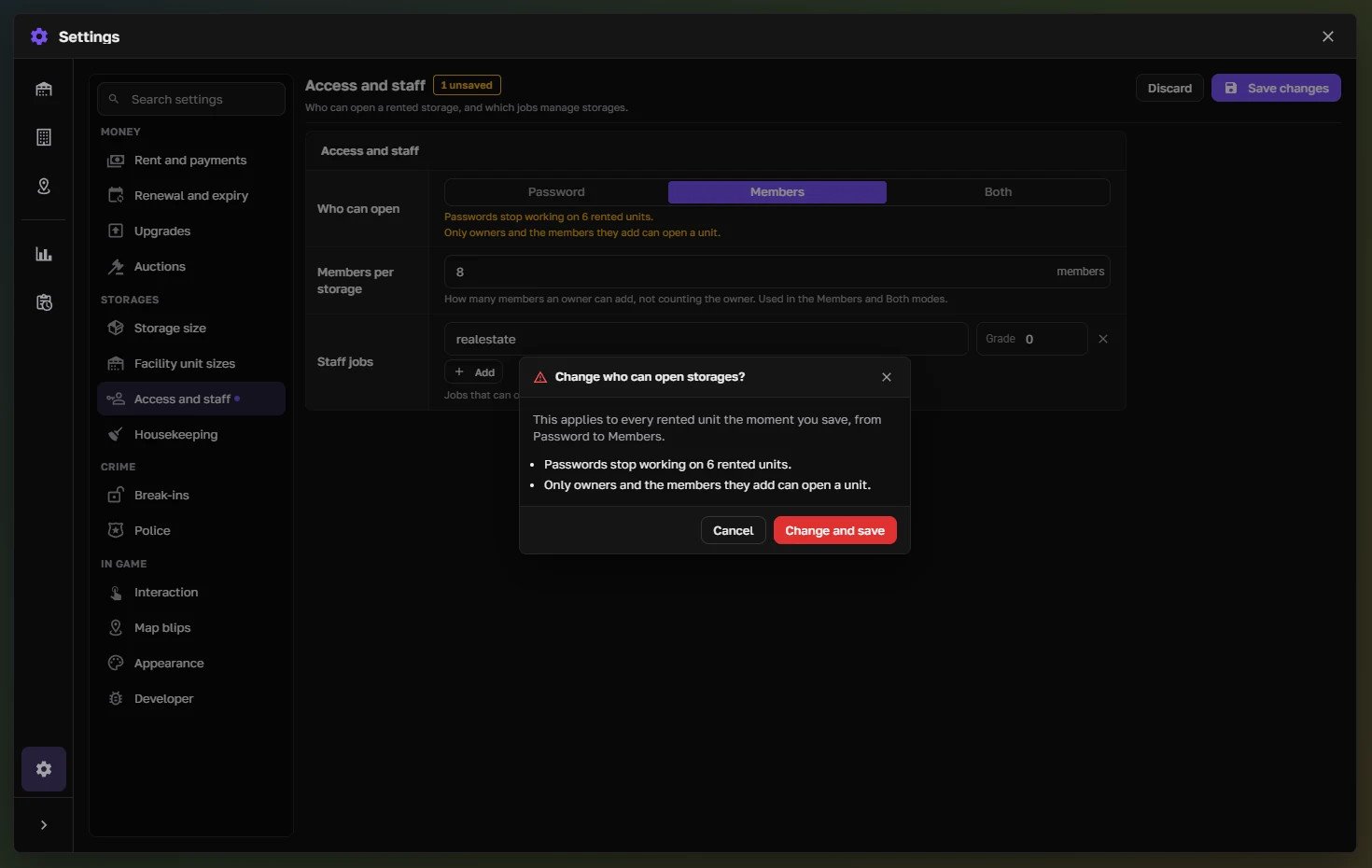
Switching from Password to Members
Appearance
Recolours the storage windows: the admin panel and every player window. Unsaved colours show on the panel as you pick them, so you can see the result before you save.
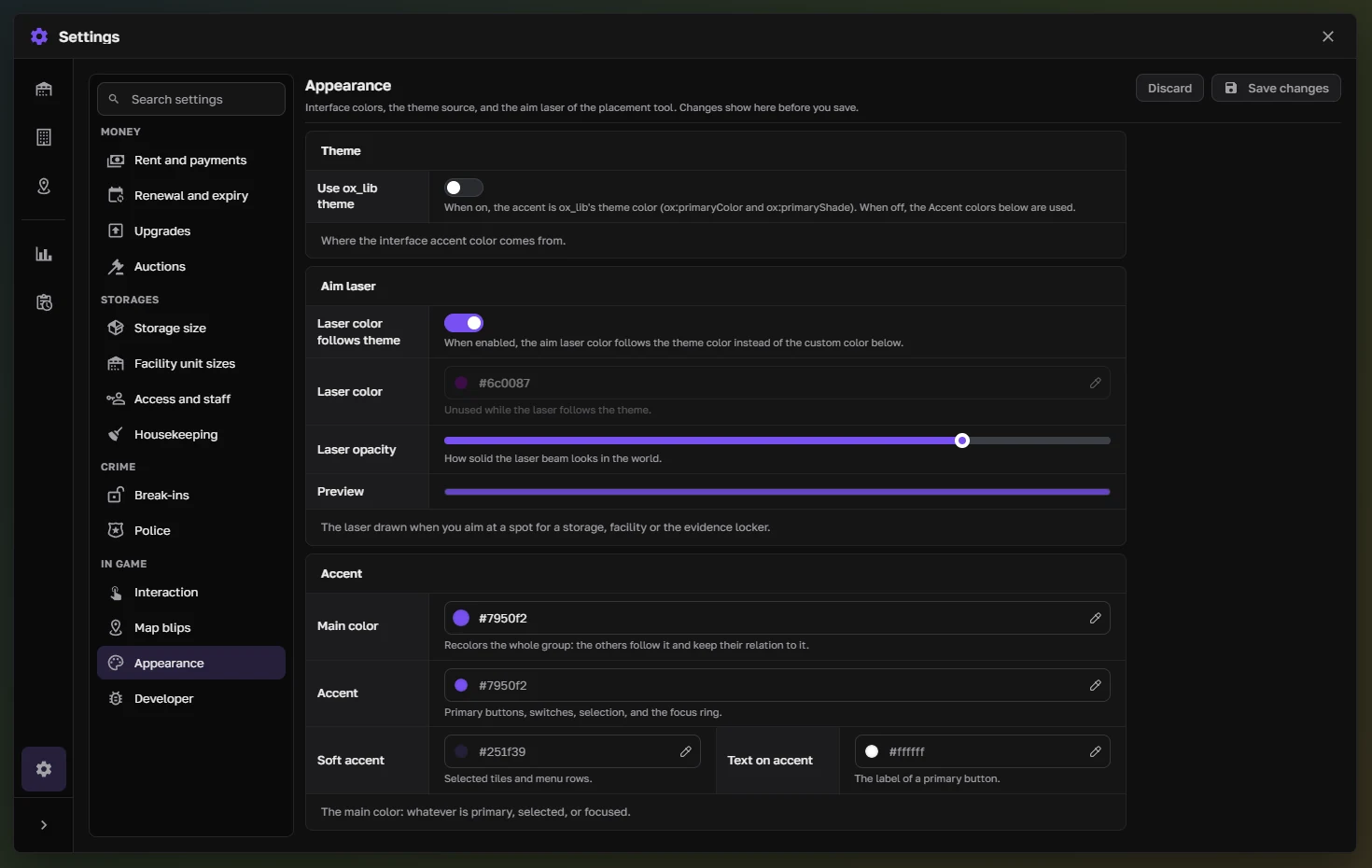
Settings → Appearance
An empty colour field uses the built-in colour shown in it. Colours may be see-through (#rrggbbaa).
When a change shows
Everything applies the moment you save, but some options only matter at a certain time:
What stays in the config files
These pick which files load when the resource starts, or protect the panel itself, so they can only be changed in the files (restart the resource afterwards):
framework,inventory,textui,notifications,logs,bankinganddispatchinconfig/shared.lua(Compatible resources)settingsAceandcheckForUpdatesinconfig/server.lua- the minigames
RaidPropertyandBreakInMinigameinconfig/client.lua