🪑 Furniture
Players furnish their properties inside and out. Admins manage what can be placed from the furniture catalog.
Placing furniture
Owners place furniture from the property's Furniture tab.
- Fast Placer: fly in a freecam with a ghost preview, place pieces quickly, and undo or redo. Hovering a placed piece moves the camera toward it.
- Multi-select: select several pieces and move them together.
- Light color: pick the color of lighting furniture and turn the lights on or off.
- Lockable doors: furniture doors can be locked with keyholders and physical keys.
- Presets: save a whole layout, preview it in-world, invite other players to the preview, and apply it. Pieces that don't fit the limits are skipped, and you're told which.
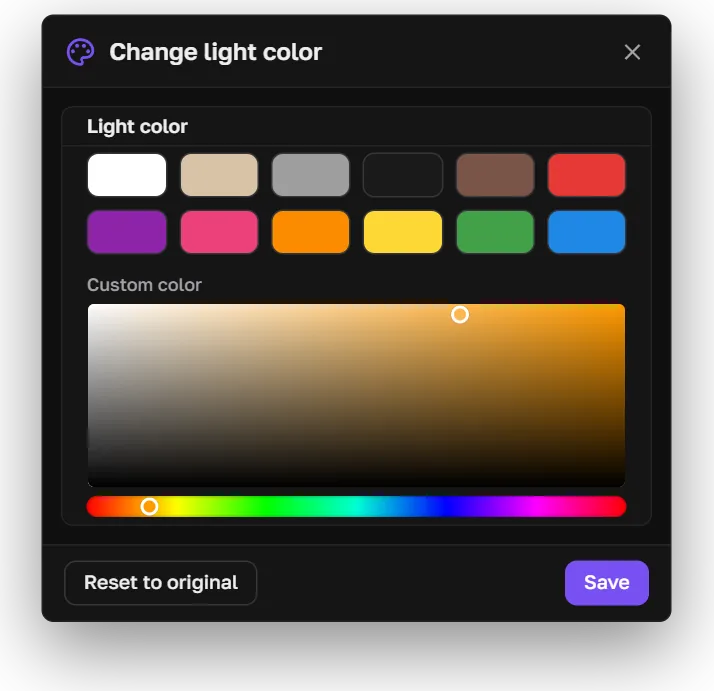
Light color
Furniture limits per property (inside and outside), per-item limits, and the default weight are in Settings → Furniture & Interior. Presets are in Settings → Furniture Presets.
Furniture catalog
Admins open the catalog with /furniturecatalog, or from /properties.
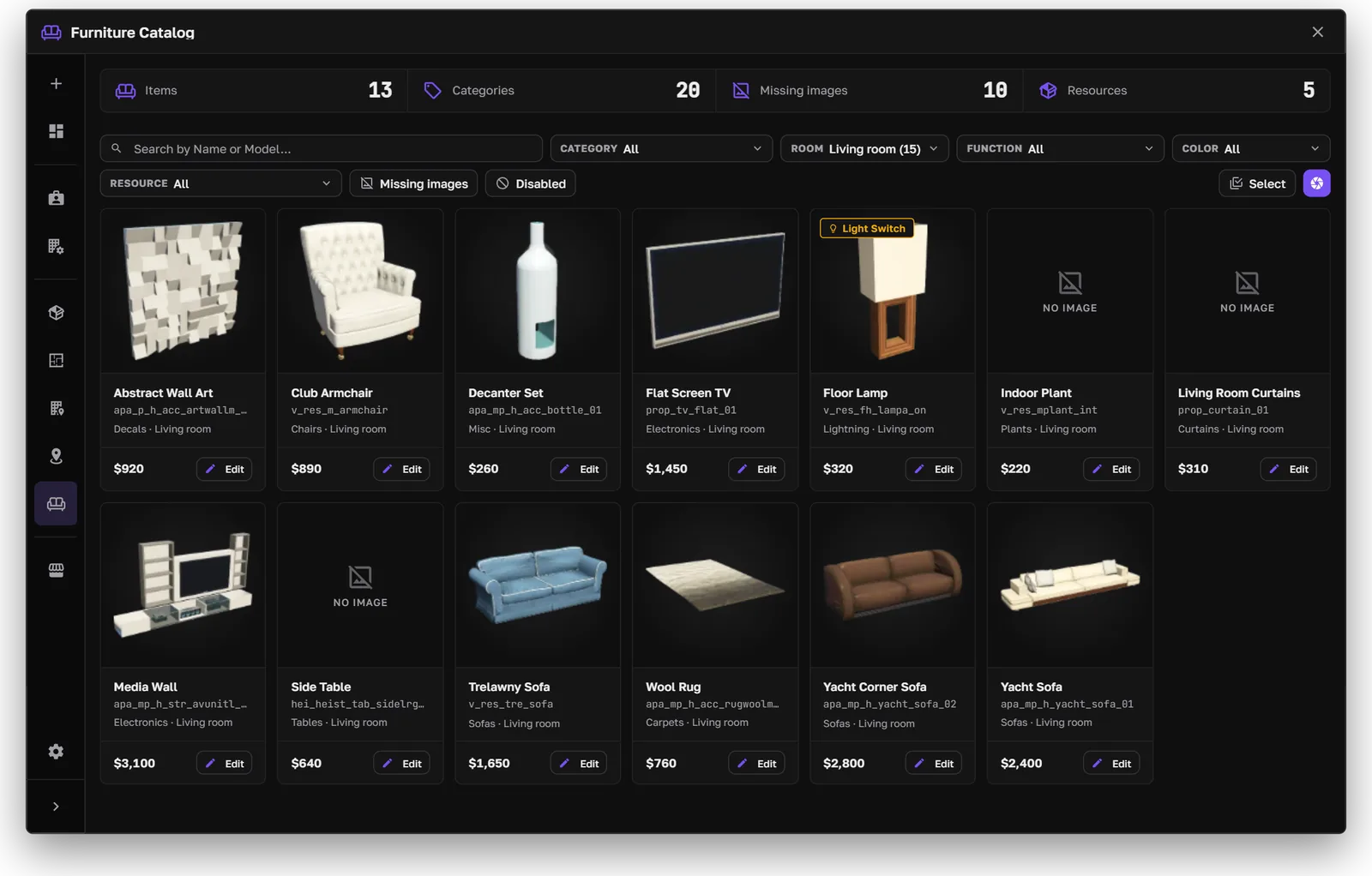
The furniture catalog
- Browse and filter by category, room, function, color, and resource.
- Missing images shows items without a photo, ready to capture.
- Select several items to change their prices or remove them together.
- Edit an item's label, price, room, category, colors, weight, and slots.
- Item-exclusive items can only be placed from the player's inventory, not bought from the catalog.
Catalog images can come from a CDN URL, with the local image as a fallback.
Object capture
The object capture studio takes clean photos of props for the catalog. Open it with /objectcapture.
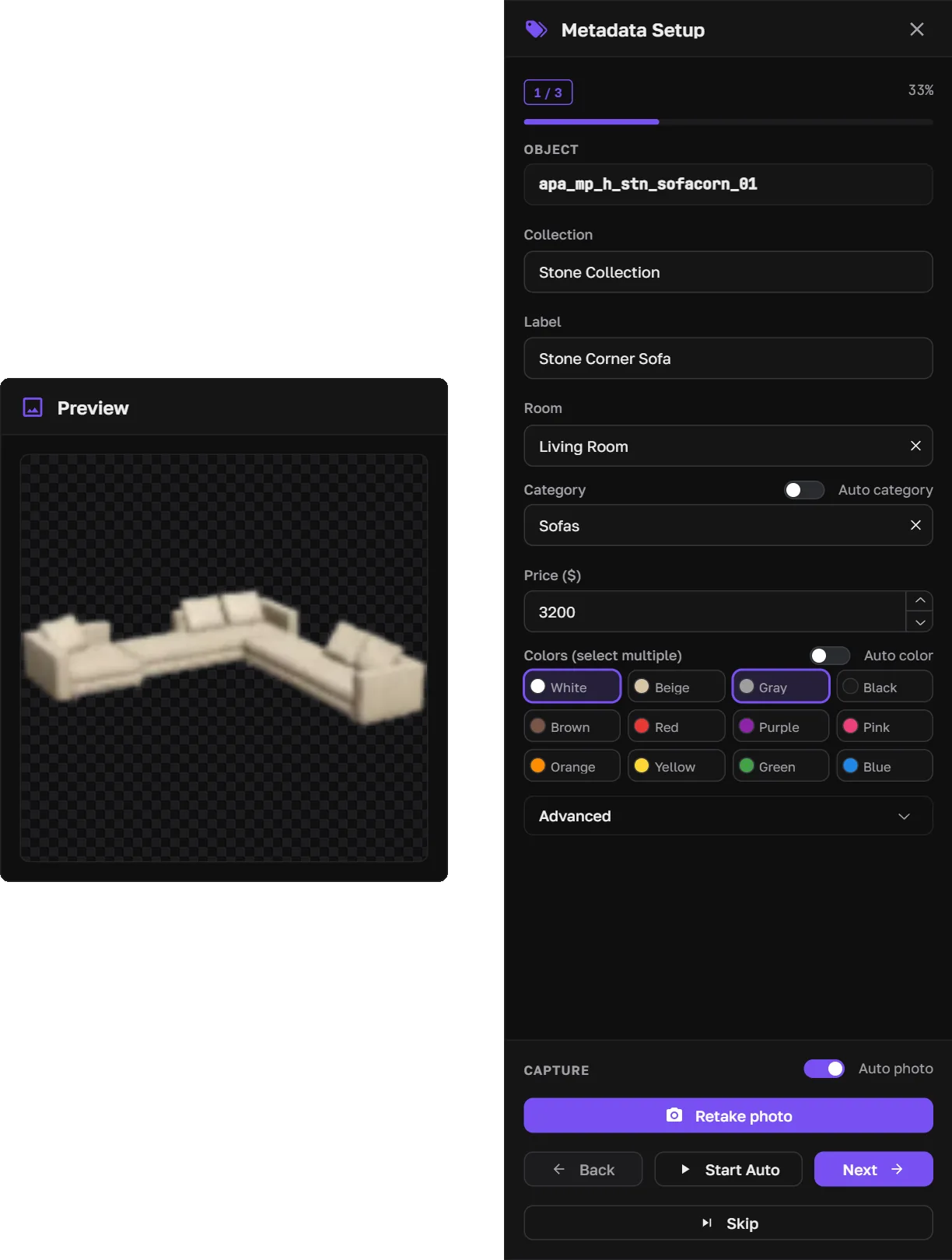
Photo preview and metadata setup
- 1
- 2
- 3
Where the photos are saved is set by Config.FurnitureImageStorage. See Configure → Photos.
Furniture as items
Furniture can be given and placed as inventory items. See the Furniture As Items guide.