📈 Markets App
The Markets app allows players to buy, sell, and trade cryptocurrencies and stocks directly from their phone. This guide will help you set up the Markets app for your server.
Asset Link: https://teamsgg.dev/scripts/markets
What You Need
Before you start, make sure you have:
- The
yseriesphone system installed - The
tgg-marketsresource installed after theyseriesresource - A free Finnhub API key (we'll show you how to get one)
Step 1: Get Your Finnhub API Key
The Markets app uses Finnhub to get real-time prices for stocks and cryptocurrencies. You'll need a free API key to make it work.
Creating Your Account
- Go to https://finnhub.io in your web browser
- Click "Login" or "Register" (usually in the top right corner)
- Fill in your details:
- Click "Create Account"
Verifying Your Email
- Check your email inbox for a message from Finnhub
- Click the verification link in the email
- Your account will be activated
Getting Your API Key
- Log in to your Finnhub account
- Go to your Dashboard (you'll see it after logging in)
- Your API key will be displayed on the dashboard (it's a long string of letters and numbers)
- Copy the entire API key
Important: The free tier gives you 60 API calls per minute, which is perfect for the Markets app. No credit card is required!
Step 2: Add Your API Key to the Server
You need to add your API key to your server configuration. There are two ways to do this:
Method 1: Using Server Config (Recommended)
Add this line to your server.cfg file:
Replace your-api-key-here with the API key you copied from Finnhub.
Example:
Method 2: Direct File Edit
If you prefer to edit the file directly:
-
Open the file:
tgg-markets/server/apiKeys.lua -
Find the line that says:
lua -
Change it to:
lua -
Replace
your-api-key-herewith your actual API key -
Save the file
Note: Method 1 (server.cfg) is recommended because it keeps your API key separate from the resource files.
Step 3: Configure Cryptocurrencies and Stocks
The Markets app comes with some cryptocurrencies and stocks already configured. You can enable or disable them, or add your own.
Configuring Cryptocurrencies
- Open the file:
tgg-markets/config/config.crypto.lua - You'll see a list of cryptocurrencies like BTC, ETH, SOL, etc.
- To enable or disable a cryptocurrency, change
enabled = truetoenabled = false(or vice versa) - You can adjust:
minPurchase- Minimum amount players can buymaxPurchase- Maximum amount players can buytransactionFee- Fee percentage (0.02 = 2%)
Important: You can have a maximum of 20 enabled cryptocurrencies. If you enable more than 20, the resource will continue running but won't fetch prices for the extra ones.
Configuring Stocks
- Open the file:
tgg-markets/config/config.stocks.lua - You'll see a list of stocks like AAPL (Apple), GOOGL (Google), MSFT (Microsoft), etc.
- To enable or disable a stock, change
enabled = truetoenabled = false(or vice versa) - You can adjust:
minShares- Minimum number of shares players can buymaxShares- Maximum number of shares players can buytransactionFee- Fee percentage (0.015 = 1.5%)
Important: You can have a maximum of 20 enabled stocks. If you enable more than 20, the resource will continue running but won't fetch prices for the extra ones.
Step 4: Start the Resource
-
Make sure your server is running
-
In your server console, type:
Code -
The resource will start and automatically:
- Create the necessary database tables
- Begin fetching prices for enabled cryptocurrencies and stocks
- Set up the Markets app in the phone
Step 5: Access the Markets App
Players can now access the Markets app from their phone:
- Open the phone
- Look for the Markets app icon
- Tap it to open
- Players will need to create an account the first time they open it
How It Works
- Real-time Prices: The app fetches live prices from Finnhub every 5 minutes
- Buying & Selling: Players can buy and sell cryptocurrencies and stocks
- Portfolio: Players can see their holdings and portfolio value
- Transfers: Players can transfer assets to other players
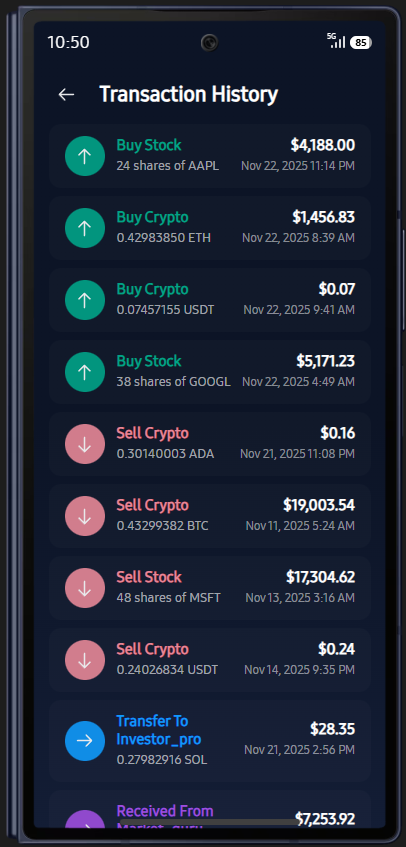
- Transaction History: All trades are recorded and can be viewed
App Interface Overview
The Markets app provides a comprehensive interface for trading. Here's what players will see:
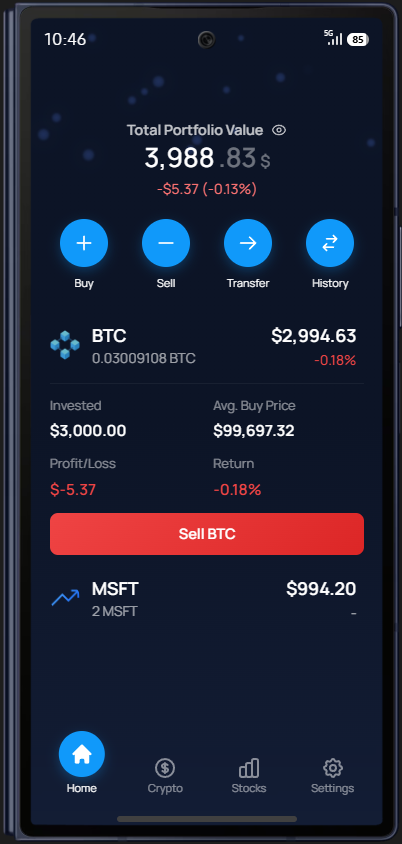
- Dashboard: The main dashboard shows an overview of the player's portfolio, including total value and recent activity.
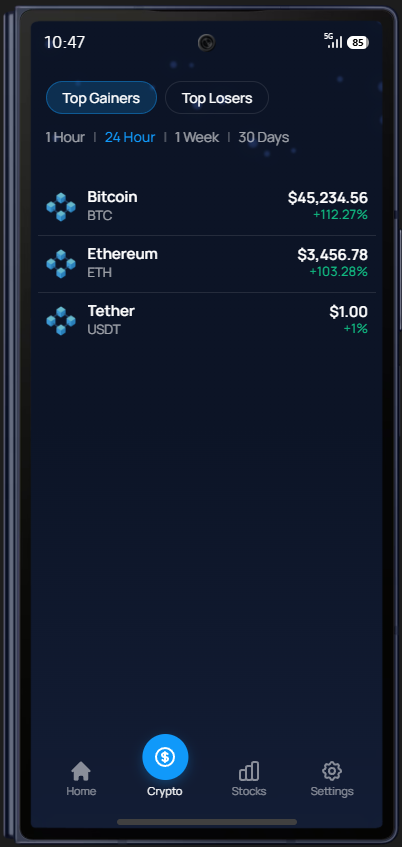
- Cryptocurrencies Tab: Players can view all available cryptocurrencies, their current prices, and price changes. They can tap on any cryptocurrency to see more details and make trades.
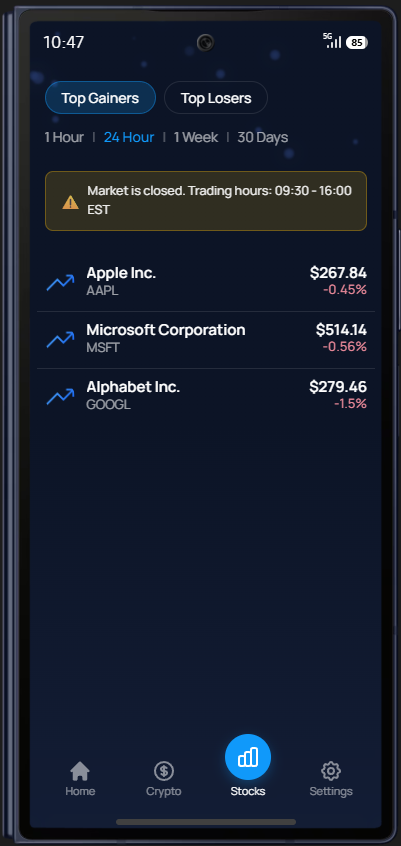
- Stocks Tab: Similar to the crypto tab, players can browse available stocks, view prices, and access detailed information for each stock.
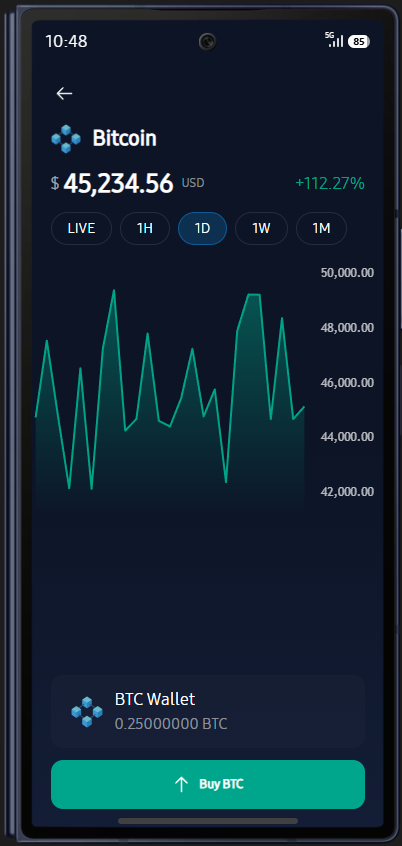
- Price Charts: When viewing a specific cryptocurrency or stock, players can see detailed price charts showing historical performance and trends.
- Buying Assets: Players can easily buy cryptocurrencies or stocks by entering the amount they want to purchase. The app shows the current price and calculates the total cost including fees.
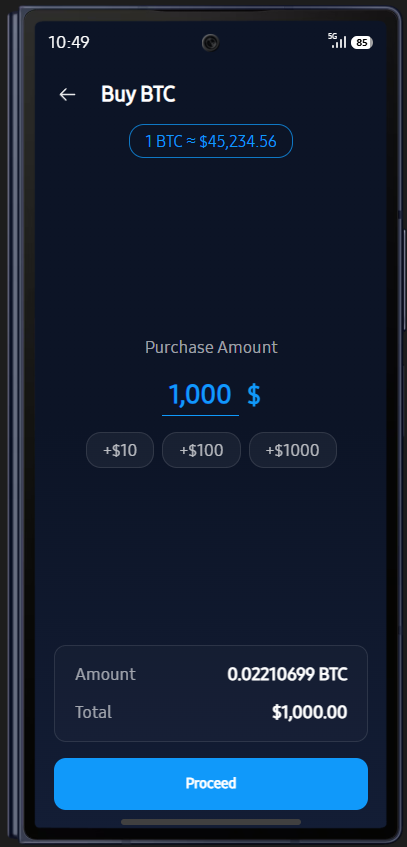
- Transferring Assets: Players can transfer their holdings to other players by entering the recipient's information and the amount to transfer.
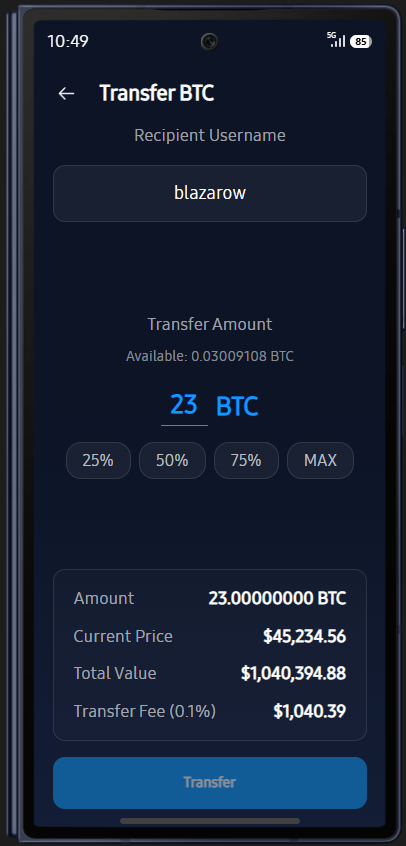
- Transaction History: All trades, purchases, sales, and transfers are recorded in the transaction history, allowing players to track their trading activity.
Trading Fees
By default, the Markets app charges:
- 0.1% fee on all trades (buying and selling)
- 0.1% fee on transfers between players
You can adjust these fees in tgg-markets/config/config.lua:
Server Exports
The Markets resource includes server-side exports for adding or removing cryptocurrency from a Markets account. These are useful for event rewards, admin corrections, custom jobs, quest payouts, compensation scripts, or other integrations that should adjust a player's portfolio without moving bank money.
Add Crypto
Adds cryptocurrency to a Markets account and records an adjustment_add transaction in the Markets transaction history.
Remove Crypto
Removes cryptocurrency from a Markets account and records an adjustment_remove transaction in the Markets transaction history.
Parameters
Both exports use the same arguments:
Return Value
Both exports return a table:
If the export fails, success will be false and message or error will explain why.
Troubleshooting
"Invalid API key" Error
- Make sure you copied the entire API key correctly
- Check for any extra spaces before or after the key
- Verify the key is correct in your
server.cfgorapiKeys.luafile - Restart the resource after adding the key
"Rate limit exceeded" Error
- You have too many enabled cryptocurrencies or stocks (max 20 of each)
- Disable some cryptocurrencies or stocks in the config files
- Restart the resource
Prices Not Updating
- Check your server console for error messages
- Verify your API key is correct
- Make sure you haven't exceeded the 20 symbol limit per type
- Check your internet connection
Markets App Not Showing in Phone
- Make sure
tgg-marketsresource is started - Verify
yseriesphone system is installed and running - Check server console for any error messages
- Restart both resources
Important Notes
- Keep Your API Key Secret: Never share your API key publicly or commit it to public repositories
- Free Tier Limits: The free Finnhub tier allows 60 API calls per minute, which is perfect for this app
- Database: The resource automatically creates and manages its own database tables
- No Credit Card Required: The free Finnhub tier doesn't require payment information
Need More Help?
If you encounter any issues:
- Check your server console for error messages
- Verify your API key is correct
- Make sure you've restarted the resource after making changes
- Open a ticket on our discord server
That's it! Your Markets app should now be working. Players can start trading cryptocurrencies and stocks from their phones.