🛡️ Admin panel
/storages opens the admin panel for players with a staff job. The side rail has Storages, Facilities, Map, Revenue and Audit log, and the cog at the bottom opens Settings for players with the settings ACE. See Commands and permissions.
Storages
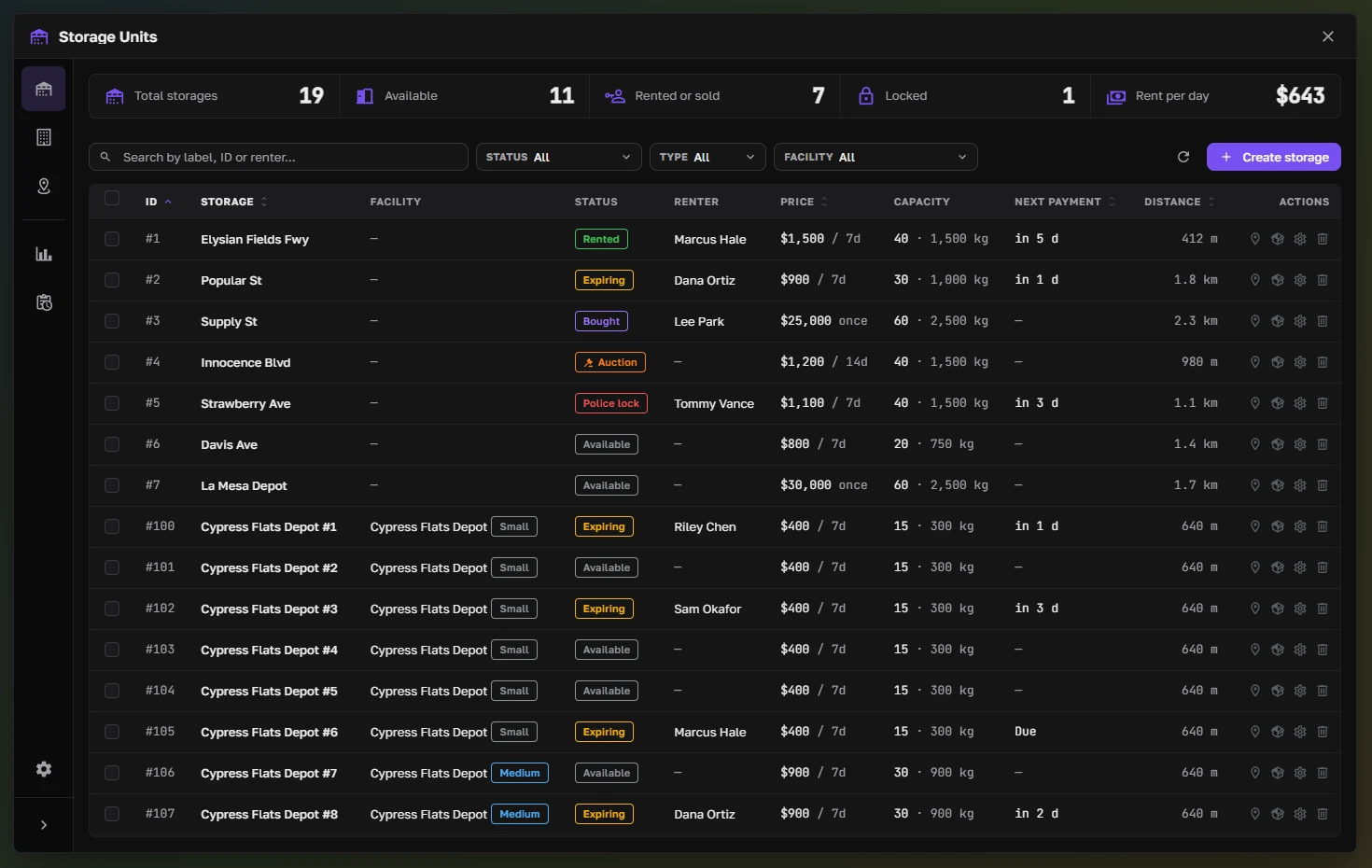
Storages
The header shows Total storages, Available, Rented or sold, Locked and Rent per day. Search by label, ID or renter, and filter by Status, Type and Facility.
Each row has four action icons:
The storage drawer
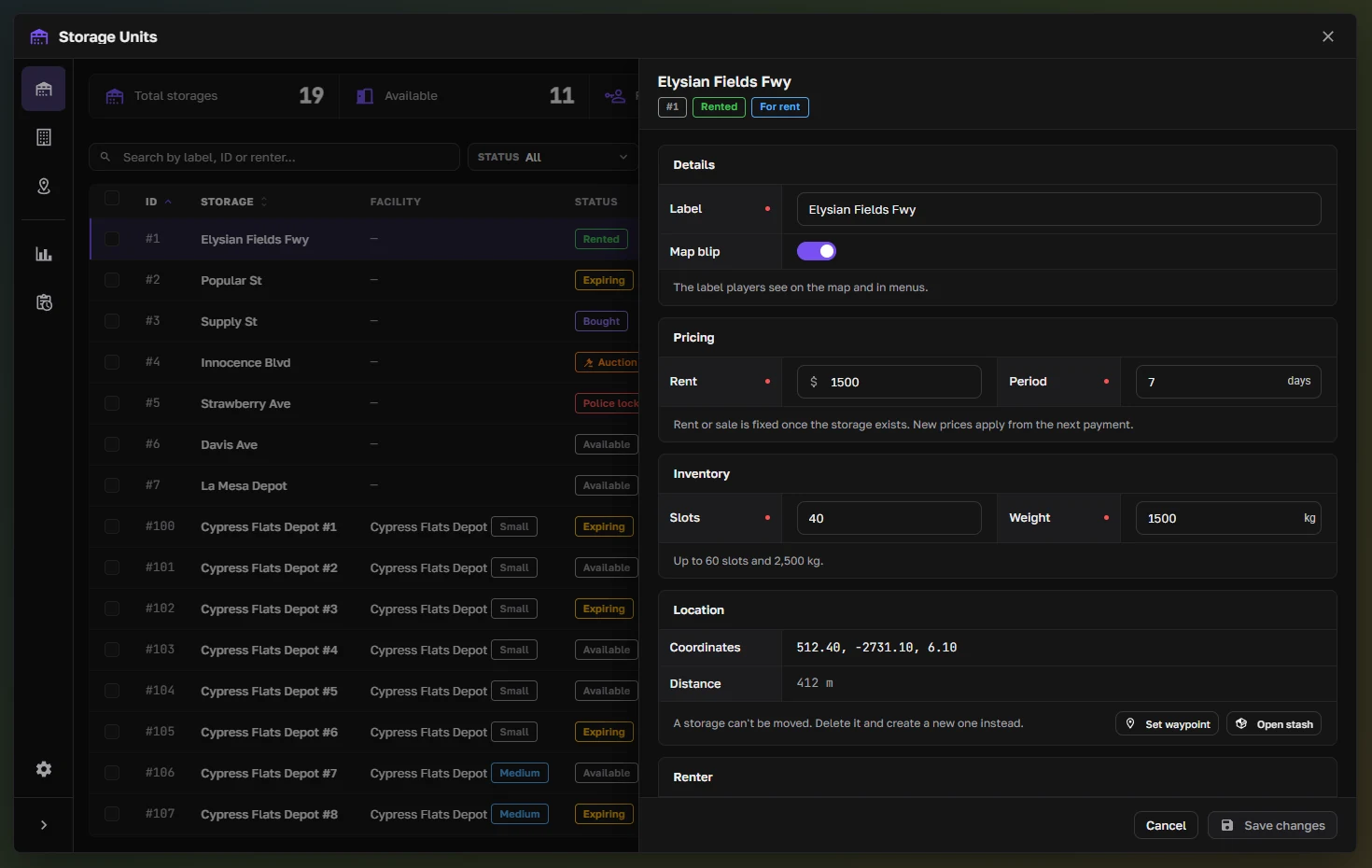
Editing a unit
Press Save changes to save the drawer.
Locked
Locking a unit blocks everyone, including the owner and members. While a staff or police lock is on, the owner can't pay and autopay skips the unit; only staff can turn the lock off. A unit that locked for a missed payment shows Unpaid instead, and the owner unlocks it by paying.
Remove renter
Takes the unit back and puts it on the market. The password, members and access log are cleared, and autopay goes back to on for the next renter. No rent is refunded. With Settings → Housekeeping → Clear on removal on (the default), the stash is emptied and upgrades are reset; with it off, the items and upgrades stay for the next renter.
Bulk edit
Tick several units (up to 1000) and press Edit … storages to change their price, rental period (1 to 30 days) or map blip at once. Only the changes you switch on are made. Each unit gets its own audit log entry; nothing is sent to your Discord logs.
Creating a unit
Press Create storage, or use /createstorage.
- Set the spot: Pick in world hides the panel so you can aim, or Use my position. Left click places the point, right click cancels. The spot must be within 25 m, and the laser turns red when it isn't. How you aim depends on Settings → Interaction → Place points with:
- Laser: mark the spot itself, for example the door. Best with a target or interact system, where players look at the point.
- Ped: a see-through copy of you stands where players will stand when the key prompt shows. It can only stand on a floor.
- Auto (default): Ped with the key prompt, Laser with a target or interact system.
- Fill in the label (2 to 50 characters), For rent or For sale, the price, the period (1 to 30 days), slots and weight.
- Press Create storage.
To place many units behind one entrance, use Facilities instead.
Map
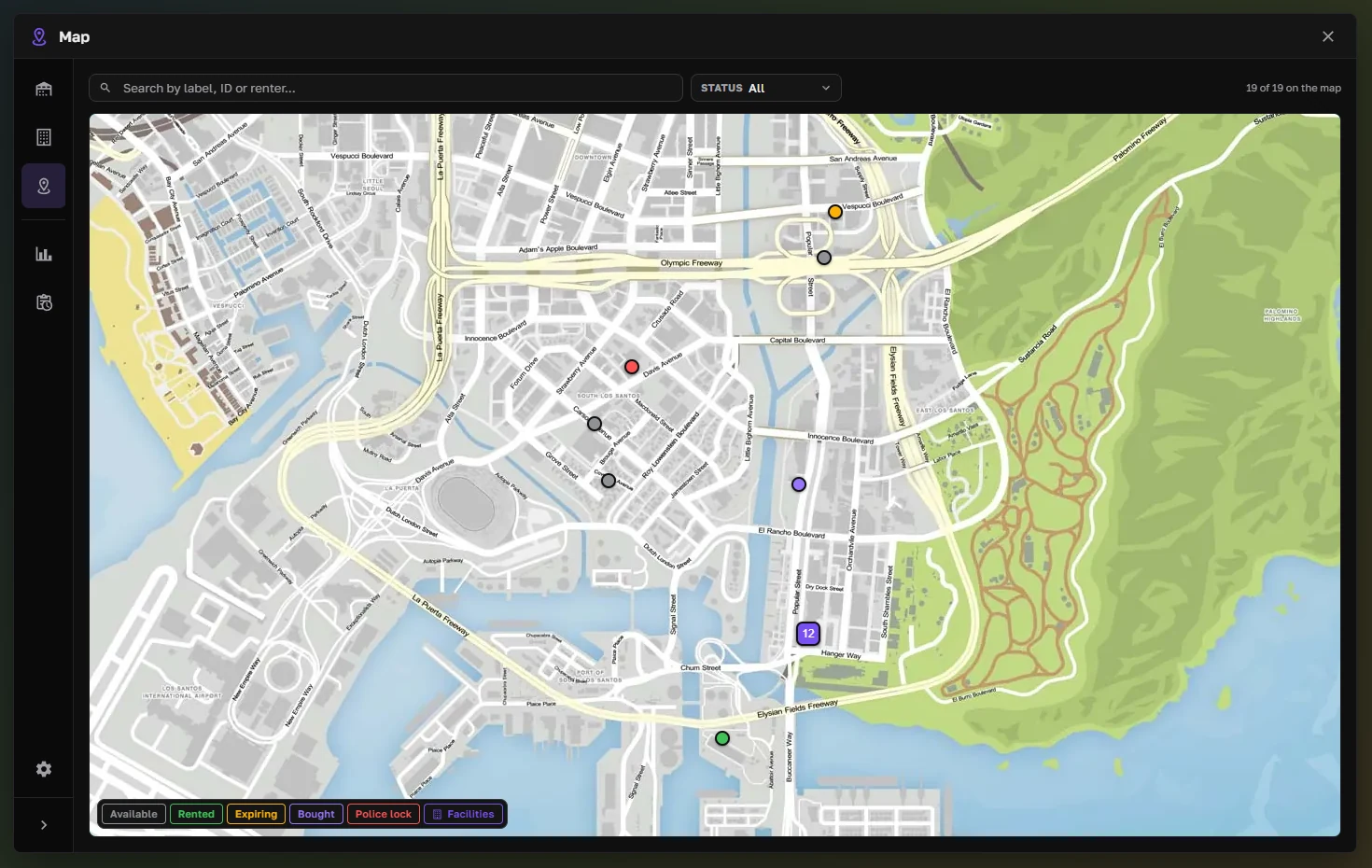
Map
Every single unit is a pin coloured by its status. A facility is one pin with the number of units in it. Click a unit's pin to open its drawer, or a facility's pin to see its units in the Storages tab.
Revenue
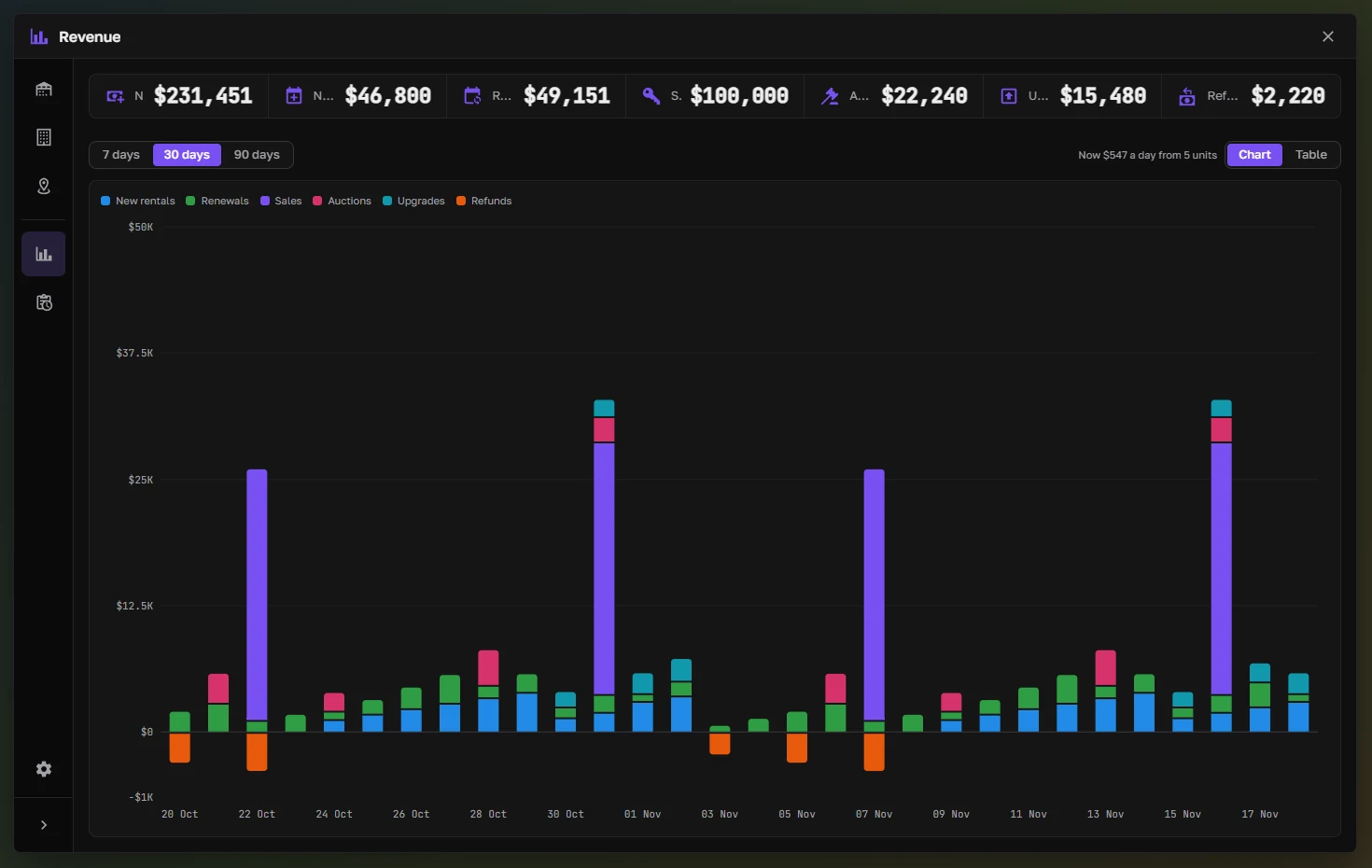
Revenue
Money in per day over the last 7, 30 or 90 days, as a Chart or a Table: New rentals, Renewals, Sales, Auctions and Upgrades, minus Refunds. The header shows how many units are occupied and the current daily run rate. Days follow the game server's date.
Audit log
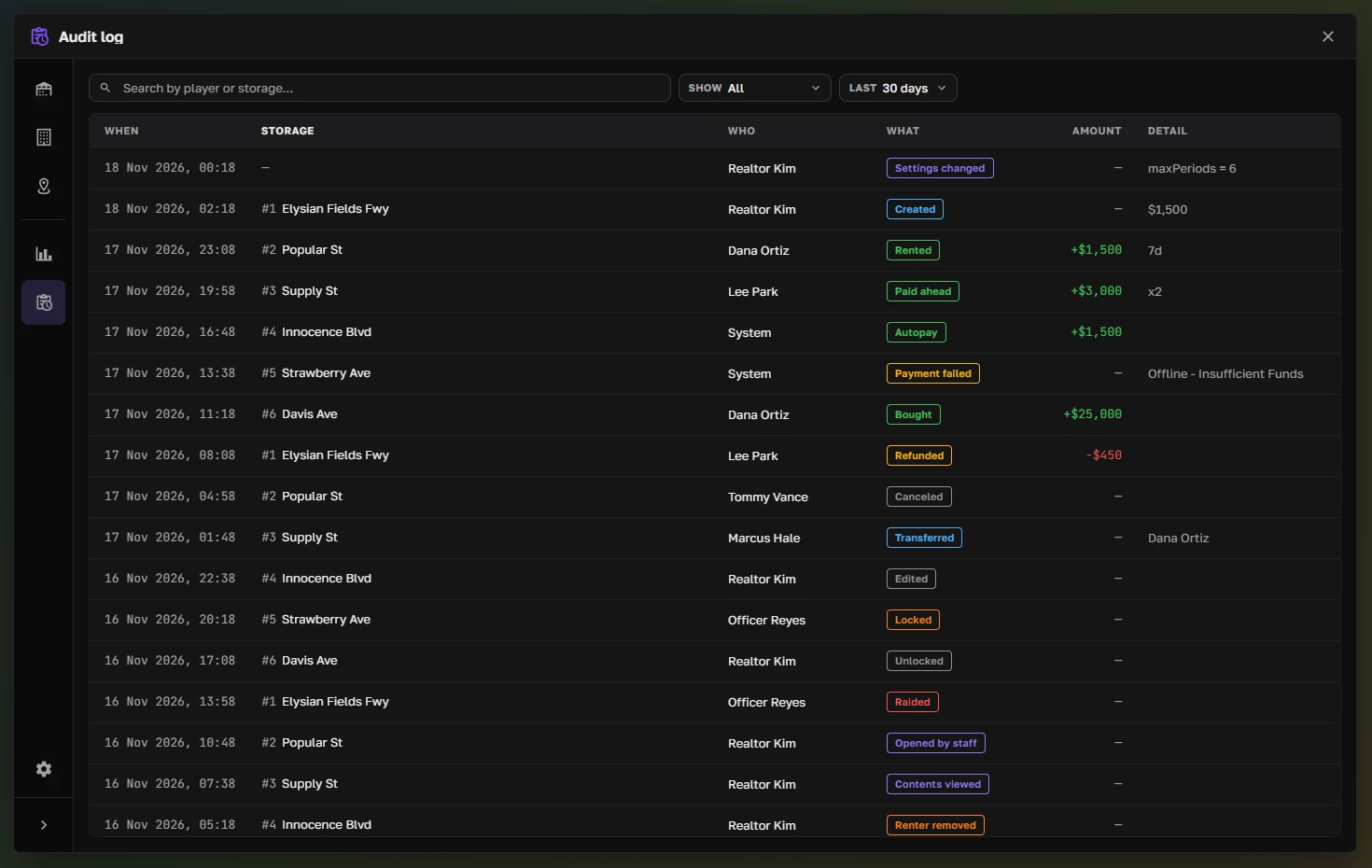
Audit log
Everything staff and players did: units created, edited, deleted, locked and opened by staff, renters removed, contents viewed, rent and purchases, payments, autopay, refunds, transfers, expiry, password changes, settings changes, auctions, upgrades, break-ins, raids and seizures.
Filter by Staff actions, Money, Ownership or Access, by the last 7, 30 or 90 days, and by player or unit. Entries stay after a unit is deleted and are removed after Keep audit log days (at least 7).
Settings
The cog at the bottom of the side rail. See In-game settings.